AWN CropAI-SWD Documentation
AWN CropAI-SWD is a smartphone application focused on streamlining the identification and quantification of Spotted Wing Drosophila (SWD) larvae in berry and stone fruits. These pests pose a serious threat to crop yield, as adult flies lay eggs directly in the fruit, allowing larvae to develop internally and compromise harvest quality.
Traditional monitoring techniques involve SWD vinegar traps to attract adult flies, but trap presence does not directly indicate infestation levels within the fruit. To obtain accurate assessments, a manual methodology was developed to extract larvae from berries using a salt solution, followed by filtering through coffee filters and microscope analysis. While effective, this process is time-intensive and prone to subjectivity.
AWN CropAI-SWD leverages AI models trained on lab and field image datasets to automate this task. The app currently detects:
- 2nd instar larvae (3.5–5 mm)
- 3rd instar larvae (>5 mm)
Limitation: Detection of eggs and 1st instar larvae (<1 mm) is not yet reliable due to current model constraints.

1. How to Access the Instructions for Image Capture
For best detection results, users should follow standardized image capture procedures to ensure clarity, scale consistency, and proper conditions. To view the recommended setup and image capture guidelines:

- Tap the Instructions button (ℹ️) on the main screen of the app.
- You’ll find guidance on:
- Proper placement of the filter and the smartphone
- Tips for camera focus, lighting, and angle
- Recommended background and surface setup for contrast
- Common mistakes to avoid (e.g., blurry images, low resolution)
- You’ll find guidance on:

2. How to Select an Image for Analysis
To begin identifying larvae using AWN CropAI-SWD, you can follow one of two methods to submit an image for analysis:

- Camera:
- Tap the Camera button to activate your device’s camera.
- Capture a clear image of the sample under proper lighting and focus.
- Follow setup guidelines in the Instructions section to maximize detection accuracy, refer 1.
- Photos:
- Tap the Photos button to open your device’s gallery.
- Choose a pre-saved image from previous field or lab samples for analysis.
3. How to Capture an Image
Capturing a clear image is essential for accurate detection of SWD larvae.
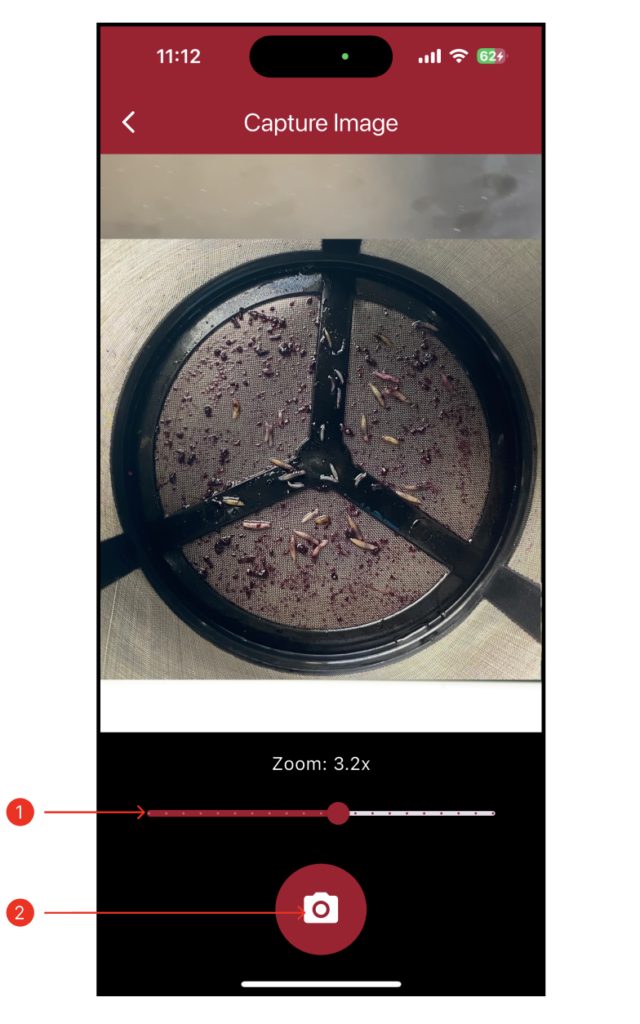
- Adjust the Zoom Level
- Use the zoom slider to set the desired magnification.
- Position the camera so that larvae samples are clearly visible and well-framed.
- Avoid blurry or overly zoomed-in views, clarity is key!
- Capture Button
- Once the zoom and framing are set, press the Capture button.
- The image will be saved and sent to the next process.
4. How to Calculate the Results
After selecting or capturing an image, users can initiate the analysis process to detect larvae.
Verify the Image: Before processing, ensure the image is clear, properly zoomed, and displays the sample with adequate lighting and contrast.
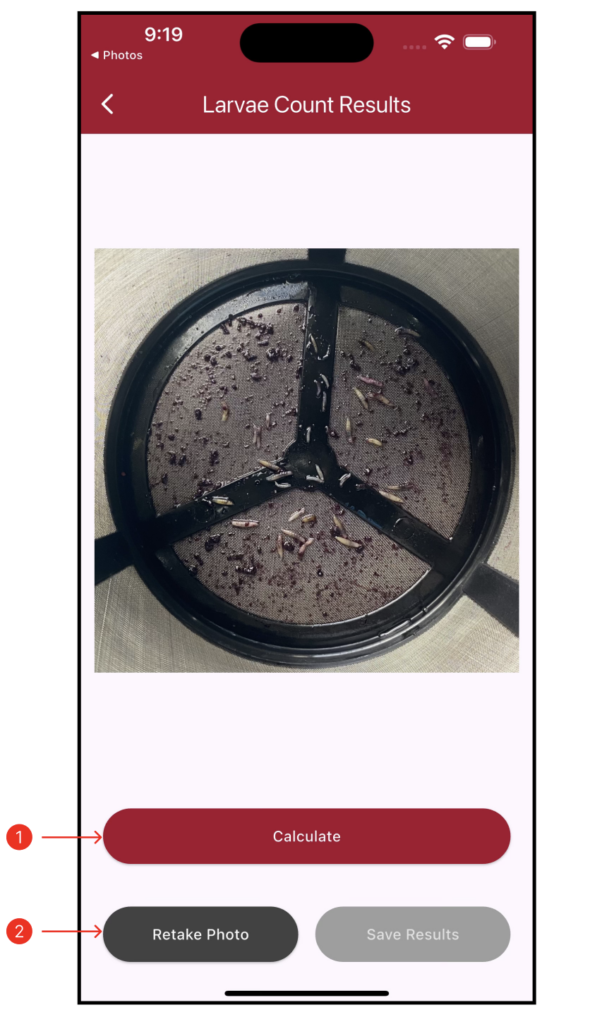
- Calculate
- Tap the Calculate button.
- The app sends the image to the AI detection model for processing.
- Within seconds, results will appear highlighting identified 2nd and 3rd instar larvae along with the total count.
- Retake Photo
- If the image isn’t satisfactory, tap Retake Photo.
- This redirects you to the capture page, where you can adjust the setup and take a better image.
5. How to Interpret the Results
After submitting an image for analysis, AWN CropAI-SWD displays the detection output on-screen with clearly marked bounding boxes that classify the larvae:
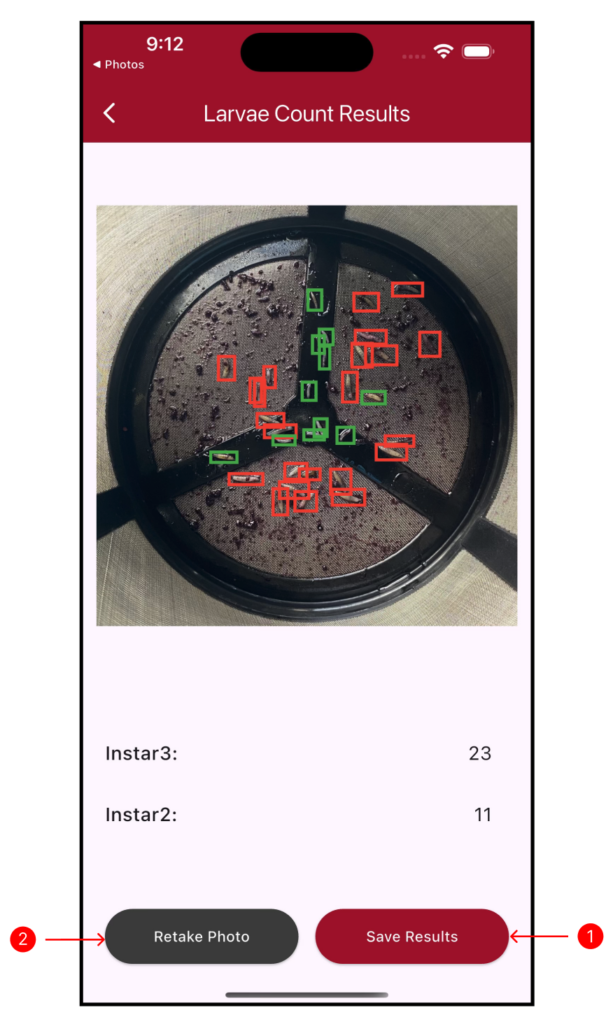
It displays detection results with color-coded bounding boxes:
- 🟥 Red Bounding Boxes: 3rd instar larvae (greater than 5 mm)
- 🟩 Green Bounding Boxes: 2nd instar larvae (between 3.5 – 5 mm)
Below the image, you’ll see how many larvae were detected in each category.
- Save Results: Tap the Save Results button to store the current image and analysis locally for record-keeping
- Retake Photo: Tap Retake Photo to return to the capture screen if you’re not satisfied with the image quality or detection
6. How to Access Previous Results
All saved detection results from AWN CropAI-SWD are stored in the Previous Results section, allowing users to revisit and manage their analyses.

- Each result displays:
- Original image with bounding boxes for detected larvae (🟥 Red for 3rd instar, 🟩 Green for 2nd instar).
- Count summary showing larvae detected in each category.
- Timestamp and location (if enabled and available).
Available Actions:
-
Delete Image: Tap the Delete icon next to a result to permanently remove it from your saved records.
Export Data: Tap the Export icon to download or share the detection data.

- Export All Results to CSV Includes all saved detection entries from the app’s history.
- Export Selected Results to CSV Allows users to handpick specific images/results to be included in the export file. Use the checkboxes next to each result to make your selection before exporting.